admin
adminv2rayN stands out as the go-to Windows VPN app for secure and anonymous internet access. It makes handling advanced protocols like Xray and Trojan simple, so you’re in charge of your privacy without jumping through hoops. Add Vpnymous to the mix, and your connection stays private, hidden, and quick.
Here’s a straightforward guide to setting up v2rayN and connecting it with Vpnymous services.
System Requirements & Preparation
Before you start, make sure your computer’s ready for v2rayN 7.x:
- Operating System: Works smoothly on Windows 7, 8, 10, and 11. It runs best on Windows 10 and 11.
- Dependency: v2rayN 7.x works really well with .NET Framework 4.8 and later.
- Core Compatibility: Starting with version 7.7.0, there’s NO NEED to look for a separate “Core” version anymore.
Step 1: Download and Install v2rayN on Windows
- Download v2rayN zip file from official v2rayN GitHub Releases.(e.g. v2rayN-windows-64-desktop.zip for 64-bit Windows).
- Extract the archive to a permanent directory (e.g., C:\v2rayN\). Avoid running the client from temporary directories or the Downloads folder to prevent permission errors or accidental deletion.
- Run v2rayN.exe.
- It’s a good idea to create a Shortcut for v2rayN.exe on your Desktop.
You can always download the latest version of v2rayNG APK from THIS LINK.
Step 2: Set the Language and Initialize
- The app may start in Chinese. Look at the top menu bar and click the Settings (three-dot menu) icon on the far right.
- Select Language > en.
- Crucial: You must restart the app to see the change. Right-click the blue v2rayN icon in your system tray and select Exit, then relaunch the .exe.
- Based on your Windows Locale settings, the app may run in English and no need to change it.
Step 3: Add Your Vpnymous Subscription
- After Purchasing your Vpnymous Account, Copy your Vpnymous subscription link from your dashboard. Log in to your Vpnymous dashboard and from Server Profiles, copy All Configurations (Subscription Link)

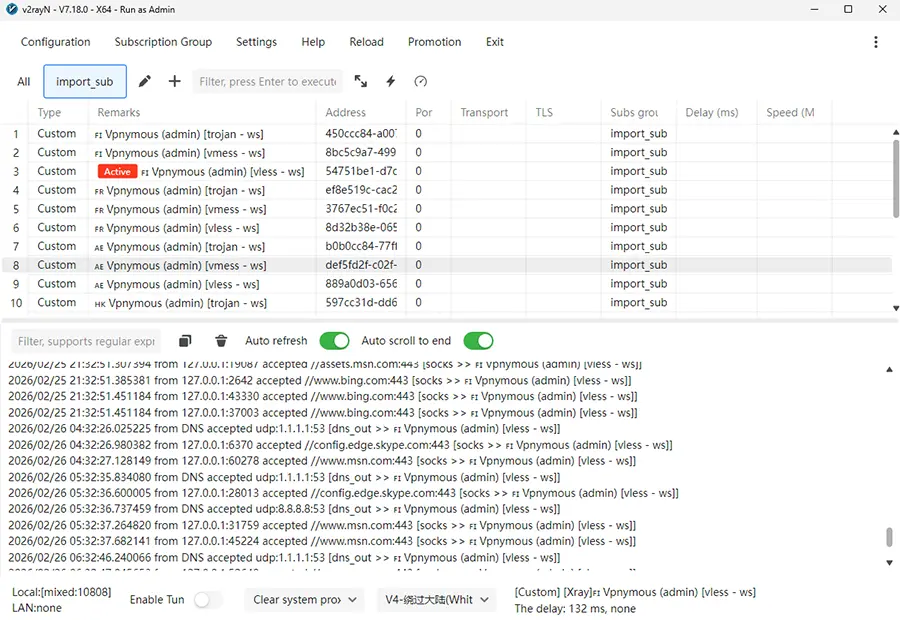
- Open v2rayN and press Control+V or from the menu click Configuration > Import Share Links from clipboard.
- From the menu click Subscription group settings > Update subscriptions without proxy.
Now you can see all Vpnymous VPN locations in v2rayN. - Right-Click on your preferred server location and click Set as active.
Set System Proxy Mode
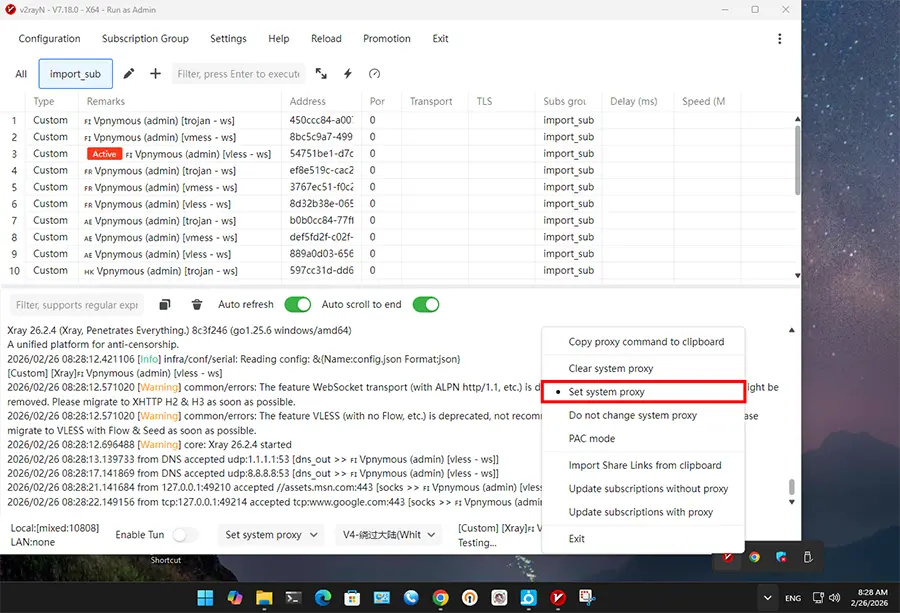
Now you need to select how v2rayN do with your Windows toward Internet destinations.
Right-Click on v2rayN icon on System Tray and based on your decision, select one of these 2 options.
- Set System Proxy (Red Icon): All system-wide HTTP/HTTPS traffic is routed through v2rayN.
- Clear System Proxy (Blue Icon): The client is active, but Windows traffic is not forced through the proxy. Useful for manual browser configuration (SOCKS5).
Step 5: Advanced Setup: TUN Mode
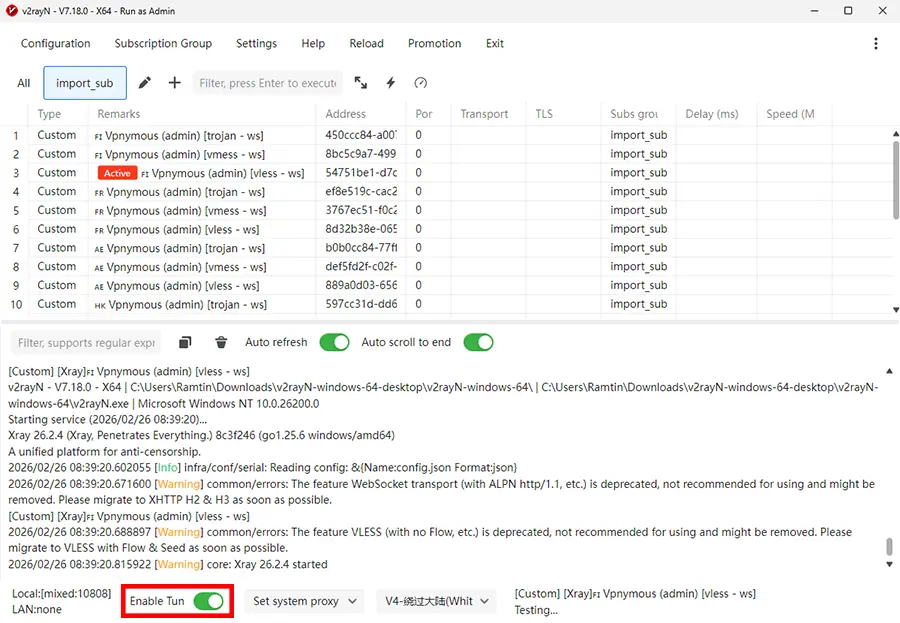
For applications that do not support standard system proxies (such as CMD/Terminal environment or games), TUN Mode is required.
- Ensure you opened v2rayN with Administrator privileges.
- In the bottom status bar, toggle TUN Mode to On. (The icon will turn Red)
- This creates a virtual network interface that captures all IP packets, ensuring total traffic encapsulation.
Troubleshooting & FAQ
1. The application won’t open or crashes immediately.
- Solution: Ensure you have .NET Framework 4.8 or later installed. While v2rayN 7.x is highly compatible, some Windows 7 or 8 systems may need a manual update from Microsoft. If you are on Windows 10/11 and it still won’t launch, try installing the .NET 8.0 Desktop Runtime, as some specific builds of version 7.x require the modern runtime to execute.
2. I added my link, but the server list is empty.
- Solution: Adding the link is only the first step. You must tell the app to fetch the data. Go to the menu and click Subscription group settings > Update subscriptions without proxy. This will download the latest Vpnymous server locations to your list.
3. The icon is Red (System Proxy), but I still can’t access blocked sites.
- Solution: This is almost always a Time Synchronization error. Xray and Trojan protocols require your system clock to be perfectly synced for the security handshake. Go to Windows Settings > Time & Language > Date & Time and click Sync Now. If your clock is off by even 60 seconds, the connection will be rejected.
4. TUN Mode is on, but I have no internet access.
- Solution: TUN Mode requires Administrator privileges to create a virtual network adapter. Close the app completely, right-click v2rayN.exe, and select Run as Administrator. Also, ensure no other VPN or “Warp” services are running at the same time, as they may conflict with the TUN interface.
5. How do I know which Vpnymous server is the fastest for me?
- Solution: You can test your connection speed directly in the app. Select all servers (Ctrl + A) and press Ctrl + T to test the “Real Delay” (Ping). For a full download speed test, press Ctrl + R. Look for the nodes with the lowest numbers in the “Delay” column for the best performance.
Secure Your Infrastructure with Vpnymous
v2rayN is only as fast as the nodes it connects to. Vpnymous provides optimized, low-latency entry points for System Administrators and DevOps professionals who require 99.9% uptime and undetected traffic.
Ready to take control of your connection?
Check Vpnymous services to pick your plan and start your journey toward total internet freedom today!